I am having trouble deleting unnecessary pages from my application PDF.
Solved by PDF24 Tools|Create Job Application
The Problem
When creating my application documents using the PDF24 tool, I have difficulties removing unwanted pages from my PDF document. If the application already has multiple pages and I want to delete certain pages, I cannot immediately see how this function is applied. Despite the tool's information that there are ways to delete or rearrange pages, I am unable to efficiently use this feature. I lack clarity about the process and a detailed guide to successfully carry out the necessary steps to delete superfluous pages. This creates challenges in editing my application documents and creating a professional application PDF.
Screenshots
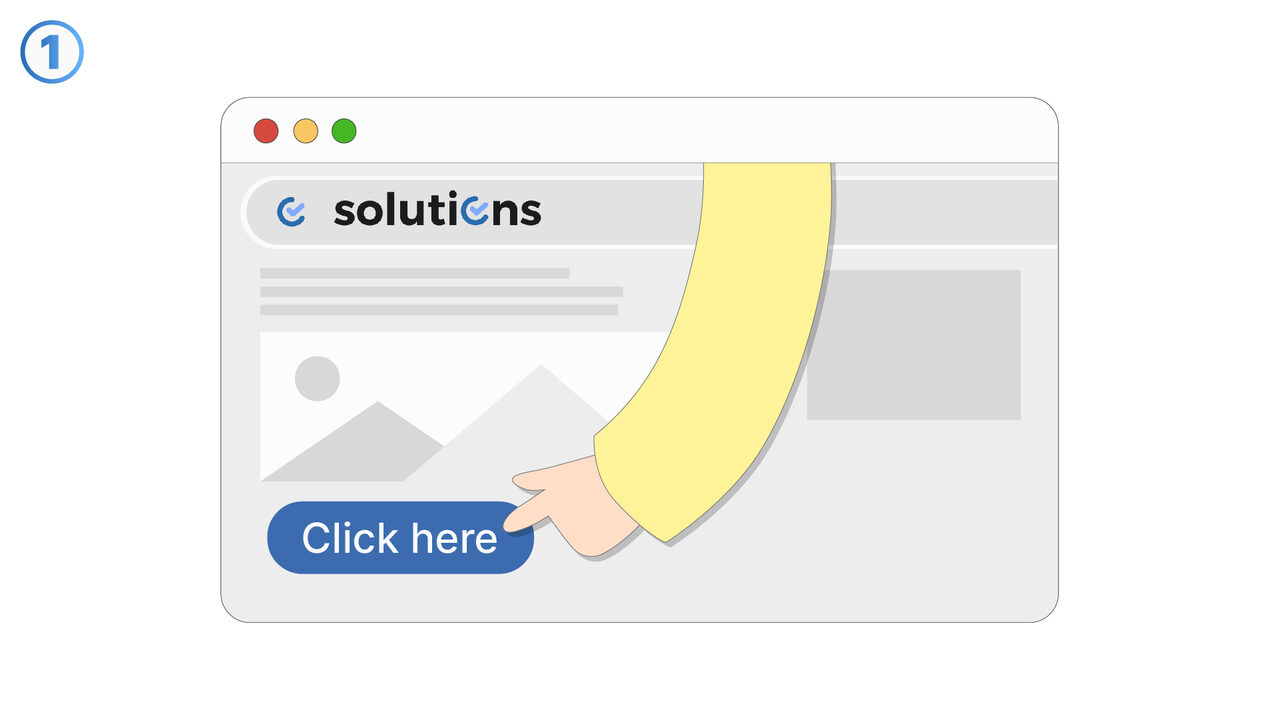
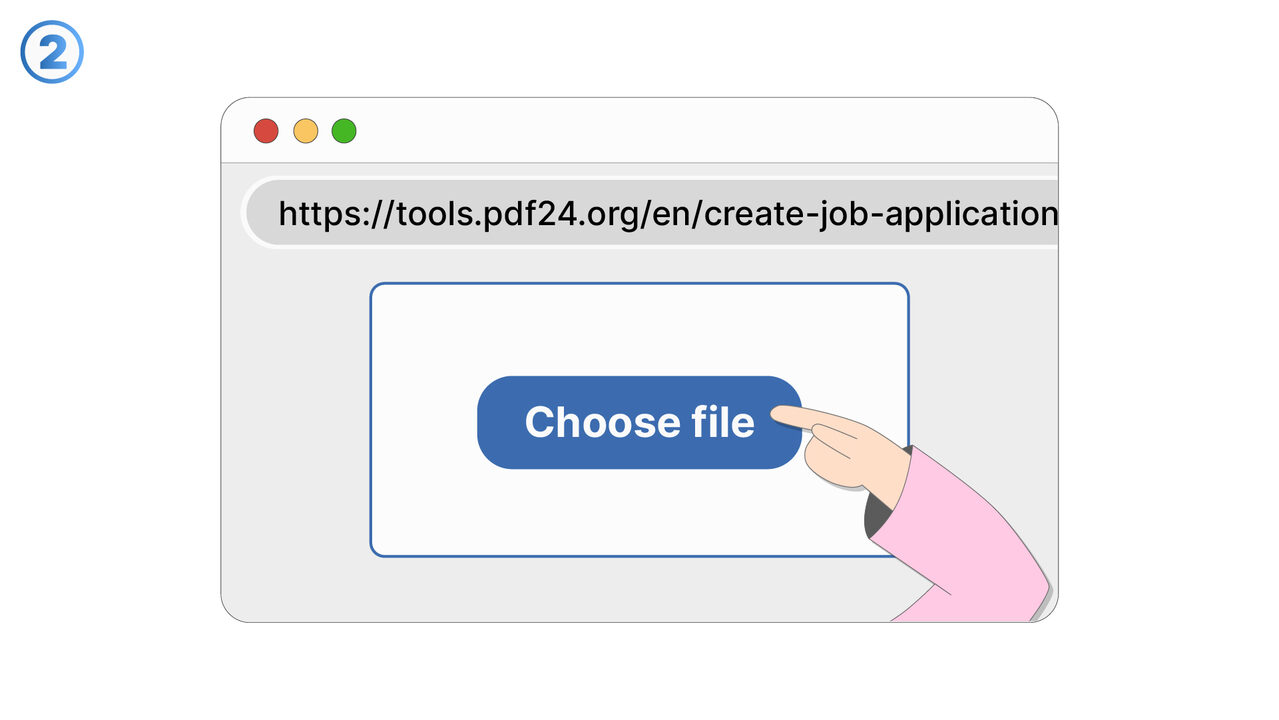
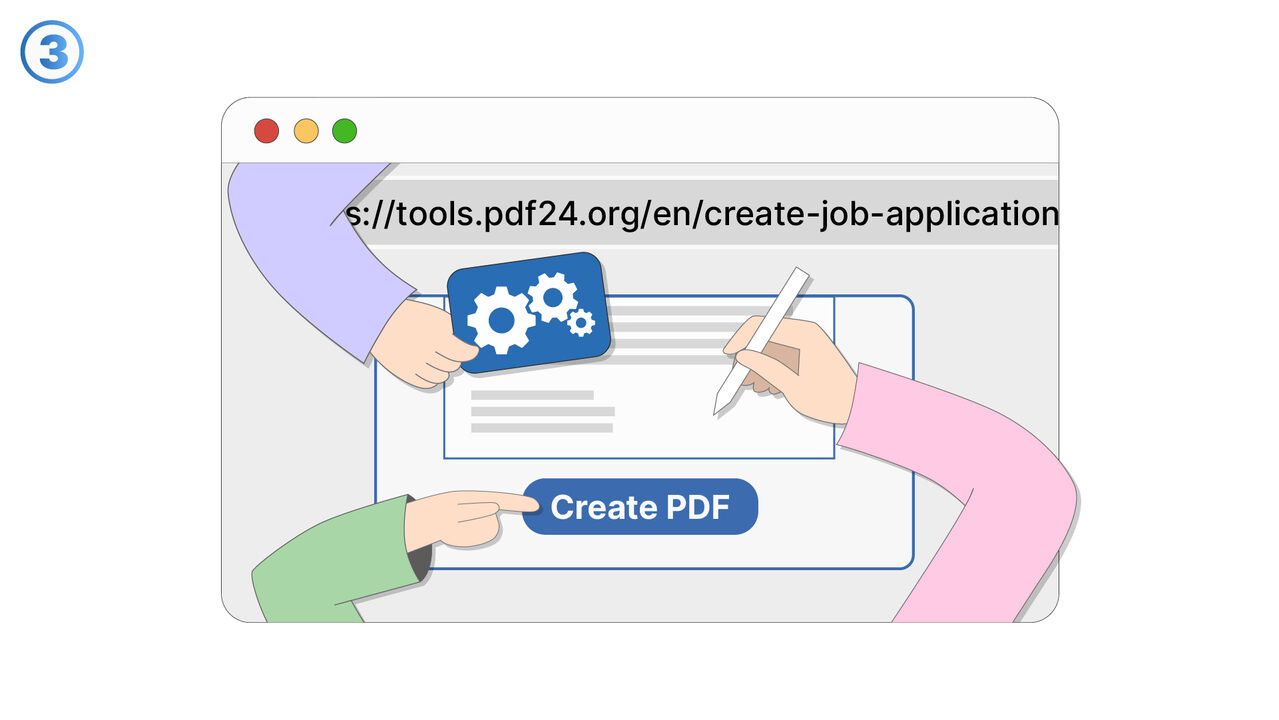
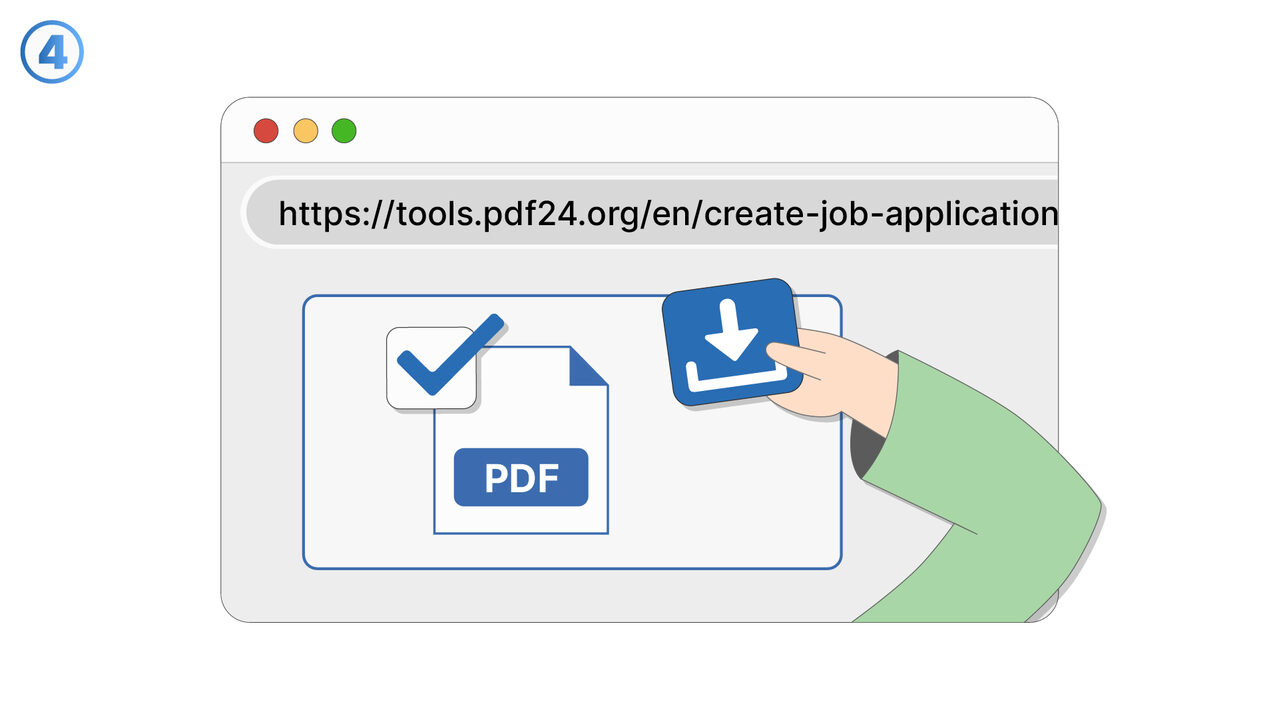
The Solution
To remove unwanted pages from your PDF document, navigate to "Edit PDF" in the PDF24 Tools. There you will see a thumbnail view of your pages. Select the page you want to delete by clicking on the corresponding thumbnail. You will see various options, including a "Delete page" button. By clicking on this button, the selected page will be removed from your document. Once you are satisfied, click on "Save PDF" to apply your changes. With this process, you can easily and efficiently remove unnecessary pages from your application.
External Resource
https://tools.pdf24.org/en/create-job-application
Use this tool as a solution to the following problems
- The formatting of my resume keeps changing when I open it on different devices.
- I have problems maintaining the design and format of my documents when sharing online or via email.
- I'm having trouble merging my application documents such as resume and cover letter into a single PDF file.
- I'm having trouble adding certificates to my PDF application.
- I need to rearrange pages in my application document.
- I need to convert my application documents into an accepted PDF format.
- "I am looking for a tool that can convert my entire application, including resume and certificates, online into a professional PDF."
- I have trouble maintaining a consistent formatting for my application documents.
- I am looking for an online tool to create and format my resume and application without having to download any additional software.
Know a better solution? Let us know.
If you know of a tool or approach that could help people solve a problem we haven't covered yet, we'd love to hear about it.